Workflows in Doco
Workflows are pre-built or customizable multi-step templates that guide McCarren AI through structured tasks — like drafting, editing, or analyzing content — with minimal input from you.
They’re designed for tasks that follow a pattern, saving time and ensuring consistency across documents.
What Workflows Do
-
Break complex actions into repeatable steps.
- Automatically apply instructions, tone, format, and logic without retyping prompts.
- Pull in content from your document, library, or uploaded files.
- Produce tailored outputs like summaries, drafts, compliance checks, etc.
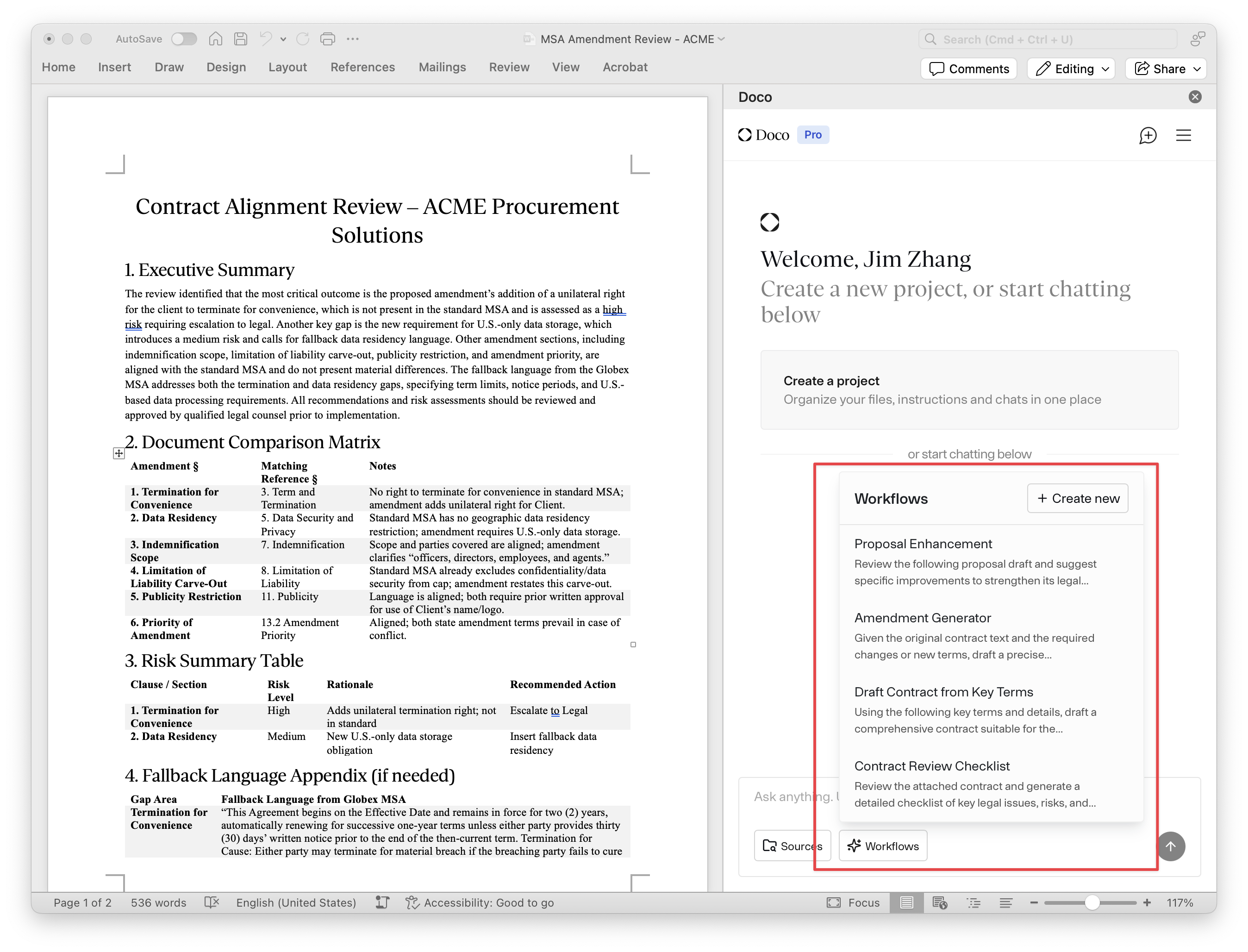
When to Use Workflows
Use a Workflow when:
- You have a task you do often (e.g., RFP responses, executive summaries).
- You want AI to follow a consistent format or voice.
- You need multi-part outputs (e.g., intro paragraph + bullet points + CTA).
Example Workflows
| Workflow | What It Does |
|---|---|
| RFP Response Draft | Extracts key requirements, proposes a draft response, and formats it in your preferred style. |
| Contract Risk Check | Flags unusual or high-risk language and suggests revisions. |
| Executive Summary Builder | Summarizes long documents into a few concise, polished paragraphs. |
| Job Description Writer | Generates a JD based on a few keywords or a role title. |
| Policy Simplifier | Rewrites legal/policy language in plain English. |
How to Launch a Workflow
-
Click the ⚙️ Workflows button at the bottom of the assistant pane.
- Choose a workflow from the list (or create a custom one).
- Refine the prompt in the chat, and reference relevant files from the library (if required).
- Highlight specific part of the text to act on, or reference the entire active document (if needed).
- Let Doco run the workflow and generate the result directly in the chat.
Creating Custom Workflows
Advanced users or admins can:
- Define their own step-by-step tasks.
- Set required inputs, formatting rules, tone, and outputs.
- Save them for reuse across the team (Business and Enterprise accounts)
✨ Pro Tip
Workflows are especially powerful when paired with Projects or custom instructions, ensuring outputs stay on-brand and on-message every time.