On Microsoft Word Online
This section guides you through installing the Doco add-in in both Microsoft Word Online (Web) versions. Make sure you're signed in with a Microsoft account that has permission to install add-ins.
- System Requirements
- ✅ Any Microsoft Word version, or Microsoft 365
- ✅ Supported platforms: Windows, macOS, or web browser (Edge, Chrome, Safari)
- ✅ Internet connection (required for AI processing)
- ✅ Microsoft account with add-in permissions
- ⚠️ If you're on a corporate device or account, installation may be restricted by IT admin policies. Please Contact Us for support.
Install Guide
-
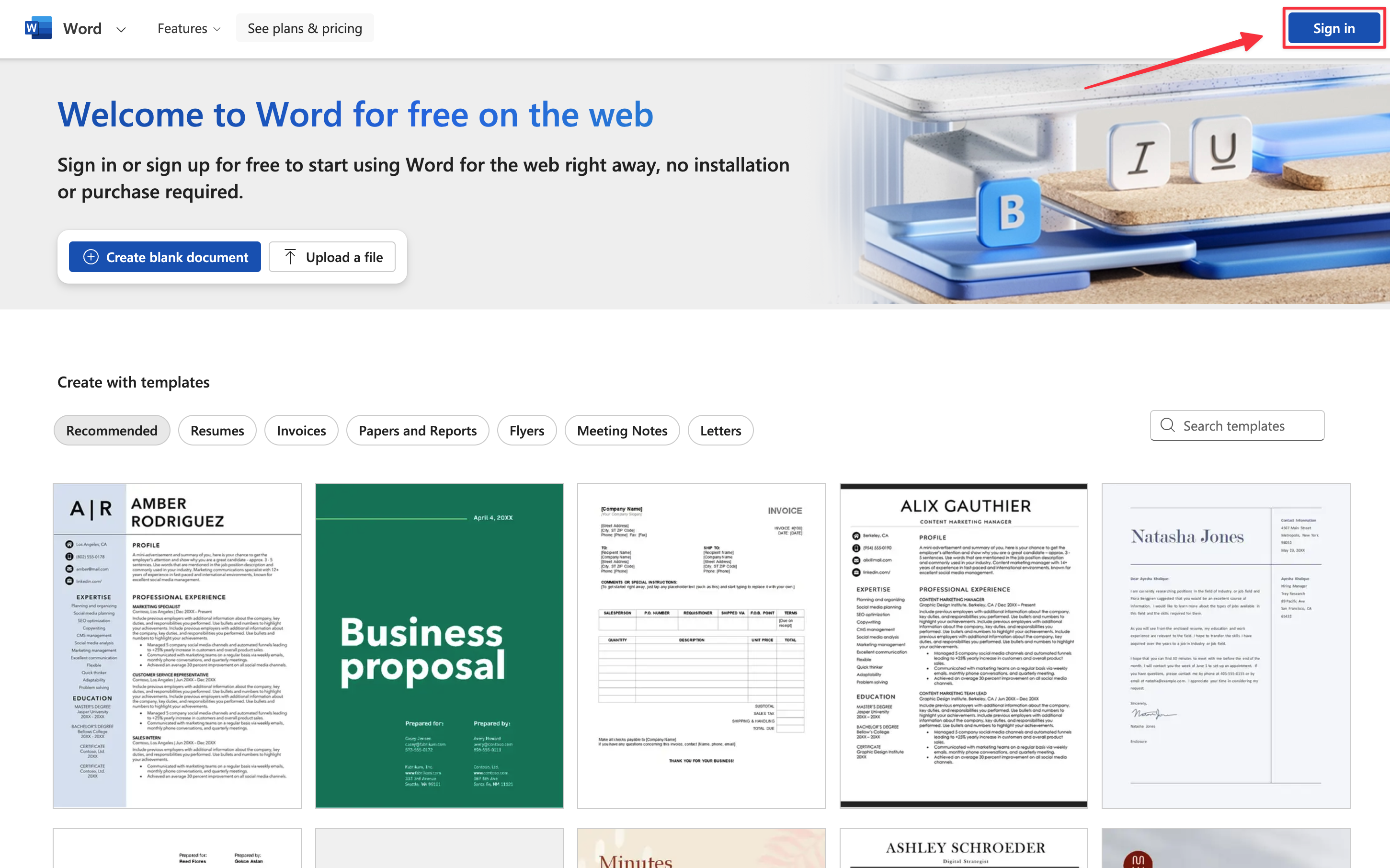
Open your browser and go to https://word.cloud.microsoft/
-
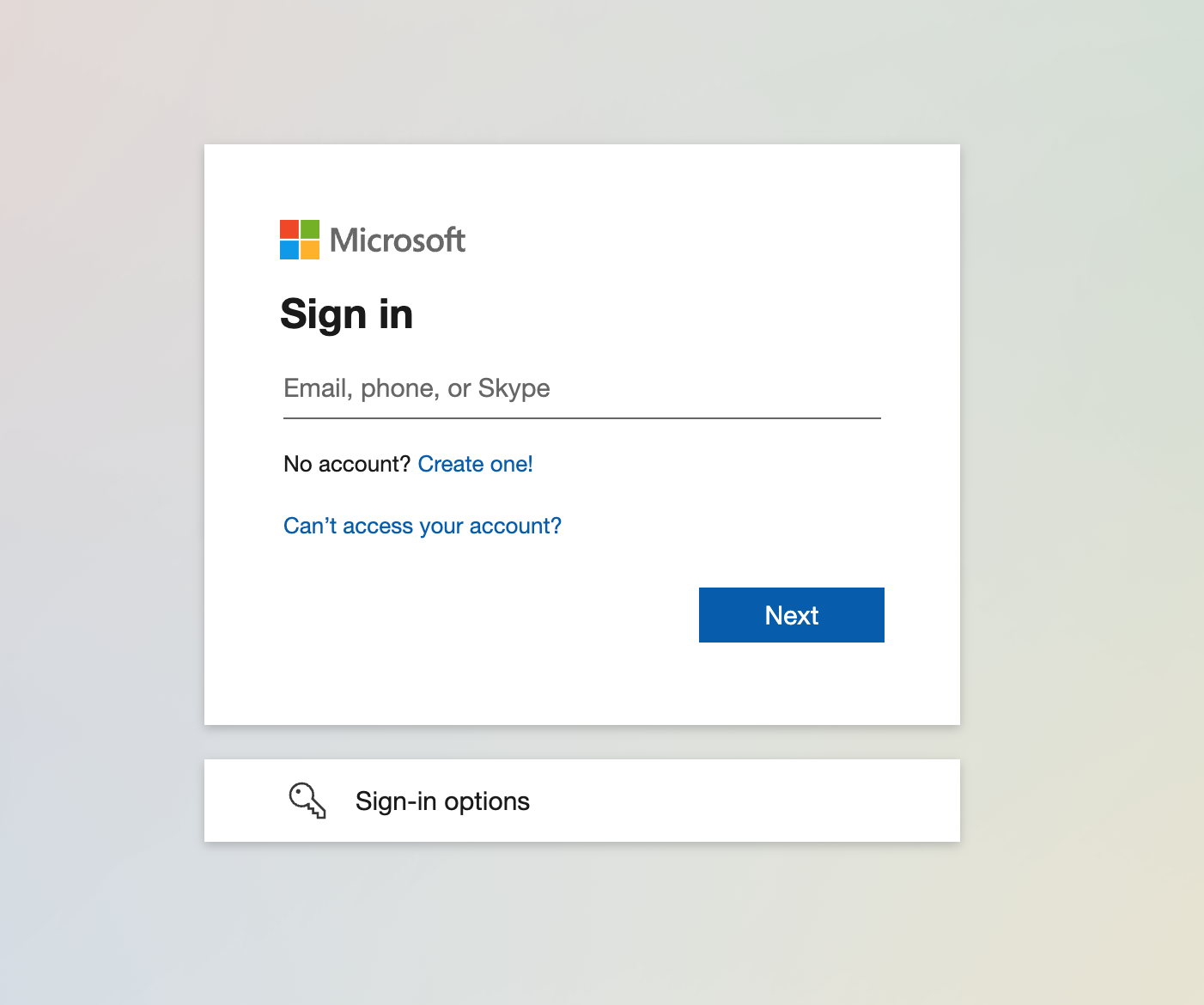
Sign in with your Microsoft 365 account (personal, work, or school).
-
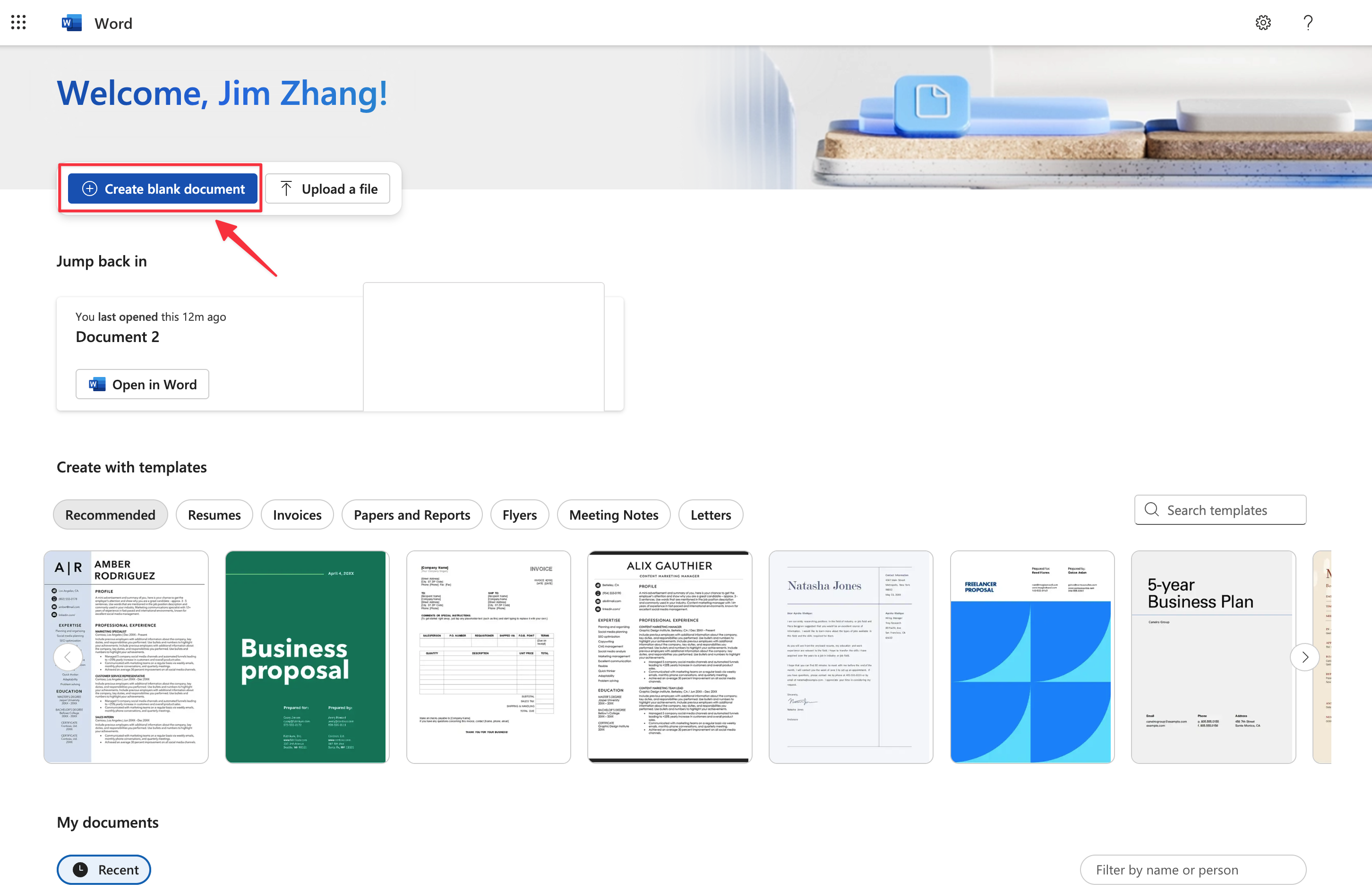
Open or create a document.
-
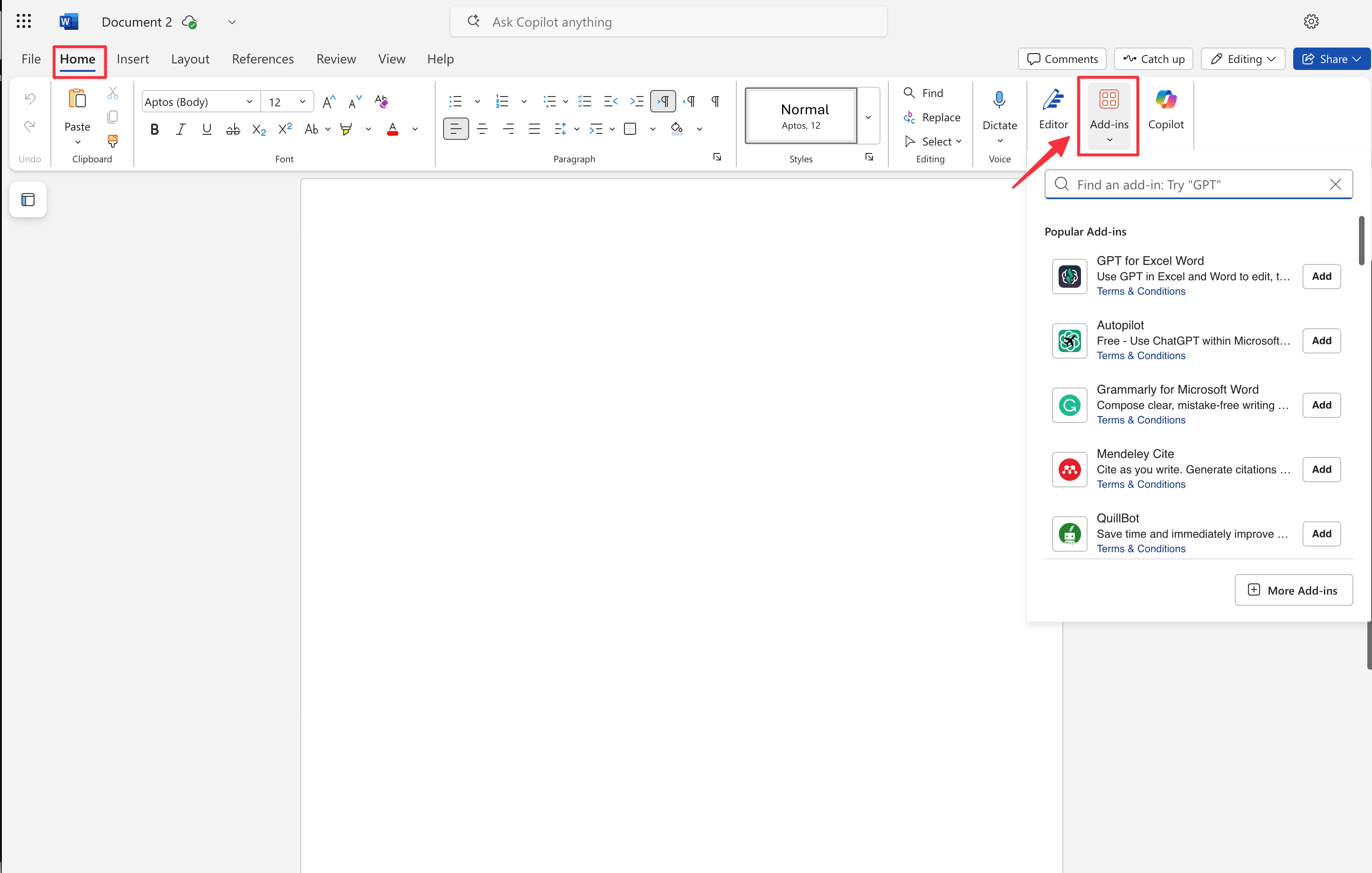
From the top menu bar, click Home > Add-ins > Get Add-ins.
-
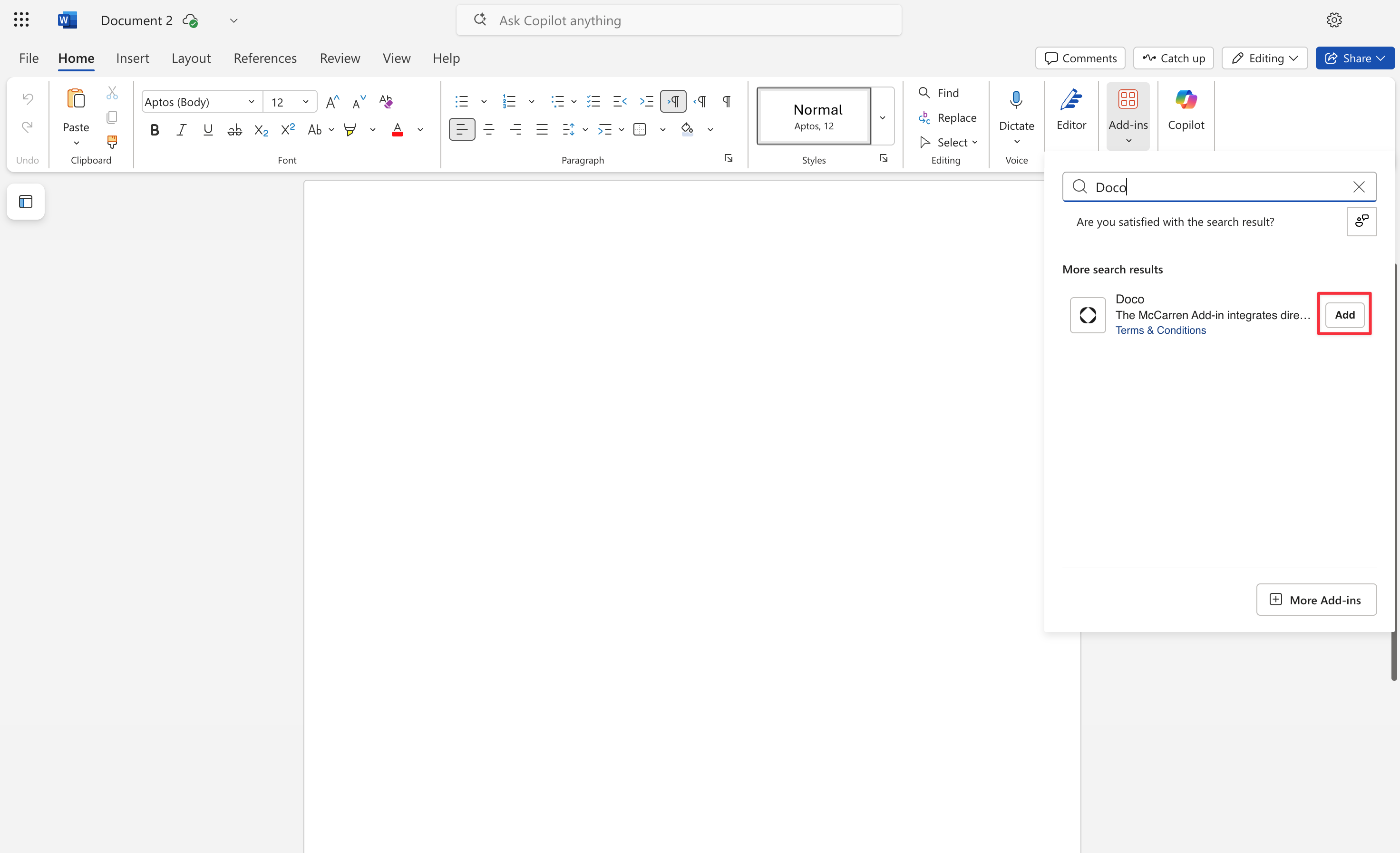
In the Add-ins panel, search for "Doco".
-
Click Add and approve any permission prompts.
-
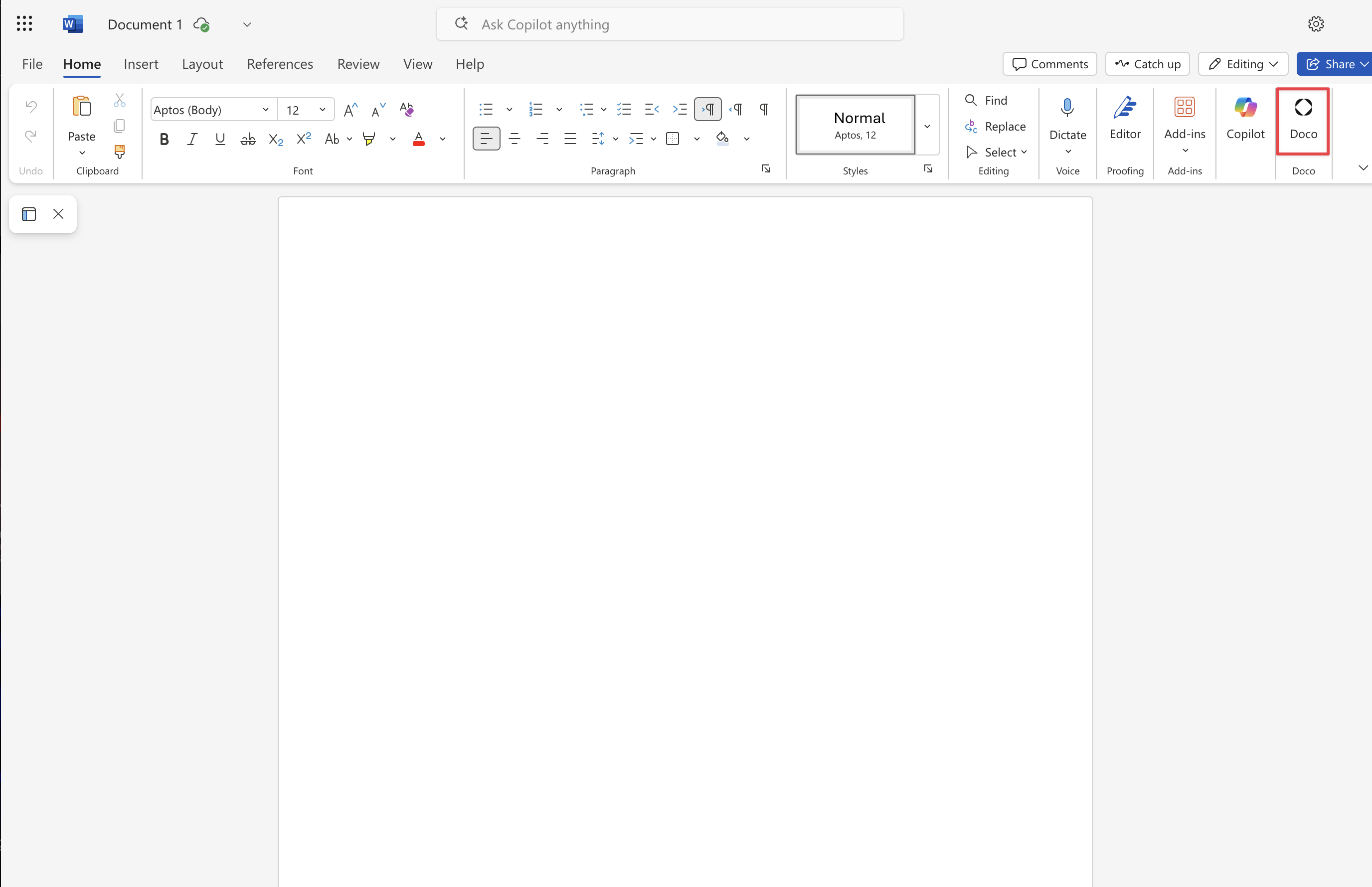
The Doco add-in will open as a sidebar on the right-hand side of the document.
Troubleshooting Tips (Online):
-
Add-in panel not showing?
→ Try refreshing your browser or using another supported browser (e.g., Chrome or Edge).
-
Can’t find the Insert menu?
→ Look under the three-dot More menu (…) for “Add-ins.”