Using Sources
The Sources menu allows you to give Doco access to documents and data that it can reference when answering your prompts. These inputs make the AI more relevant, accurate, and context-aware.
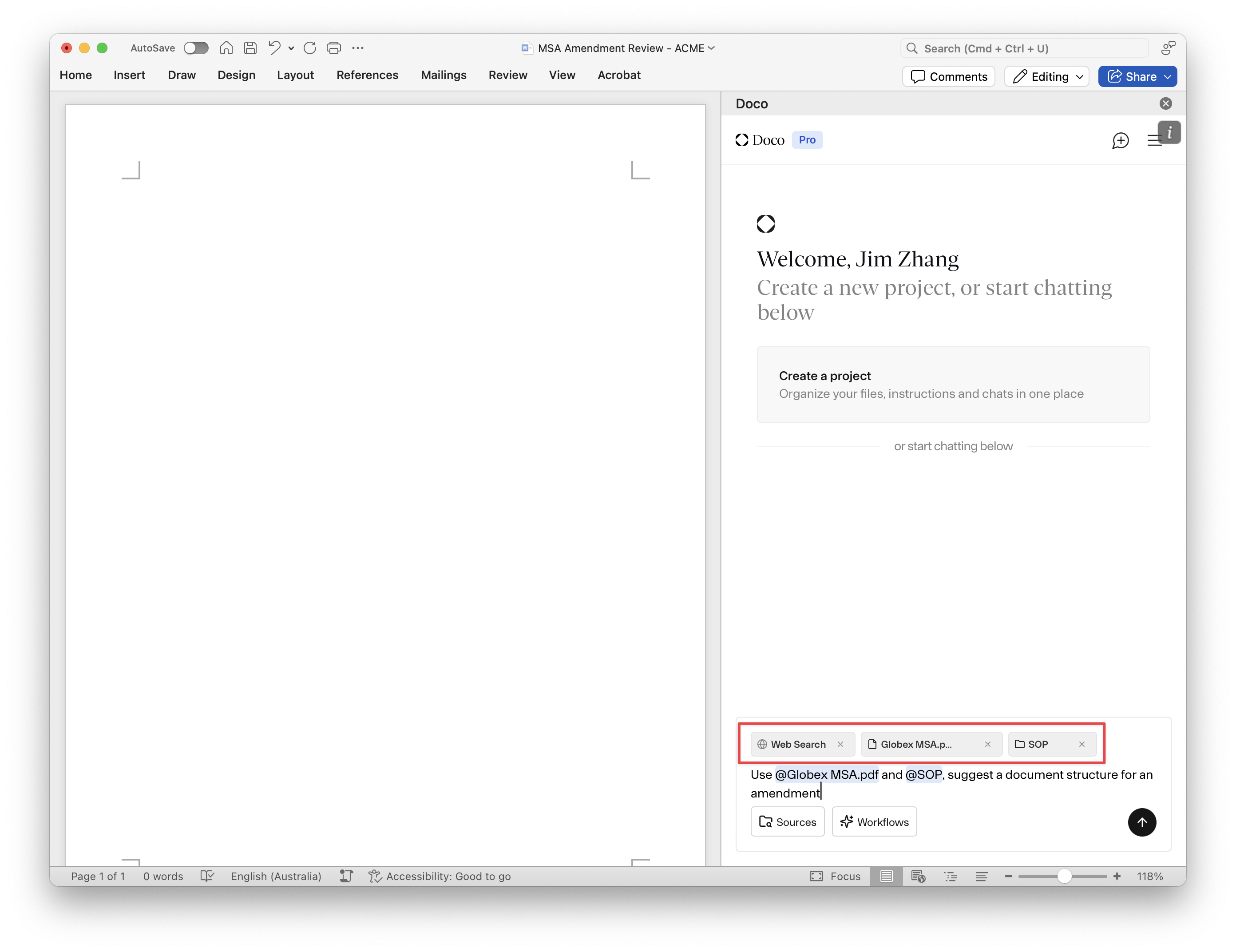
You’ll find this menu at the bottom of the chat — labeled “Sources +”. Clicking it opens the menu shown in your screenshot.
Overview of Source Types
| Source Option | Description |
|---|---|
| Library | Access documents you’ve previously uploaded or stored in collections. |
| SharePoint | Link company SharePoint folders for document access. |
| Manage connections | Connect third-party data sources like SharePoint and Google Drive (Coming soon) |
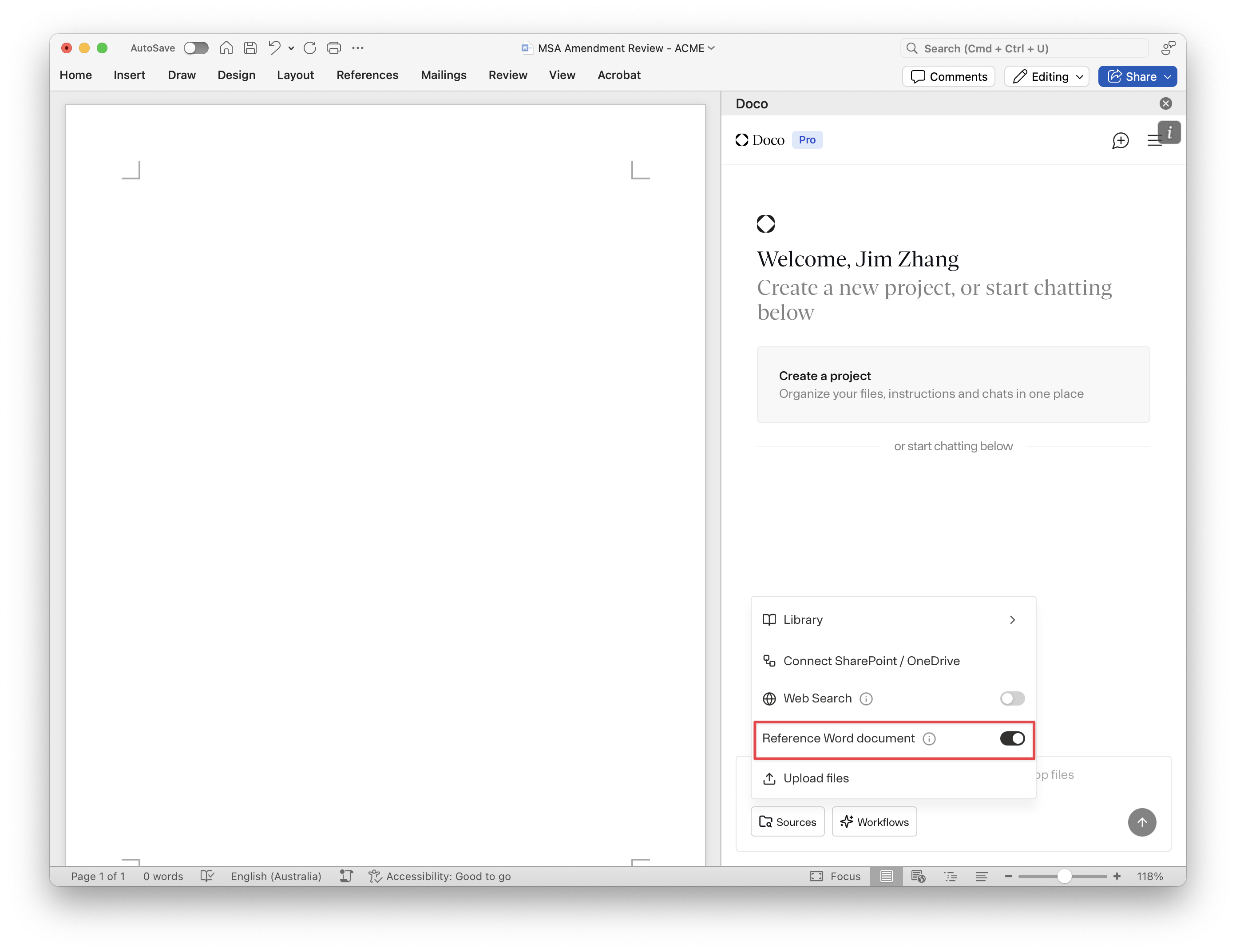
| Reference Word document | Let Doco read the content of the open Word file you're working on. |
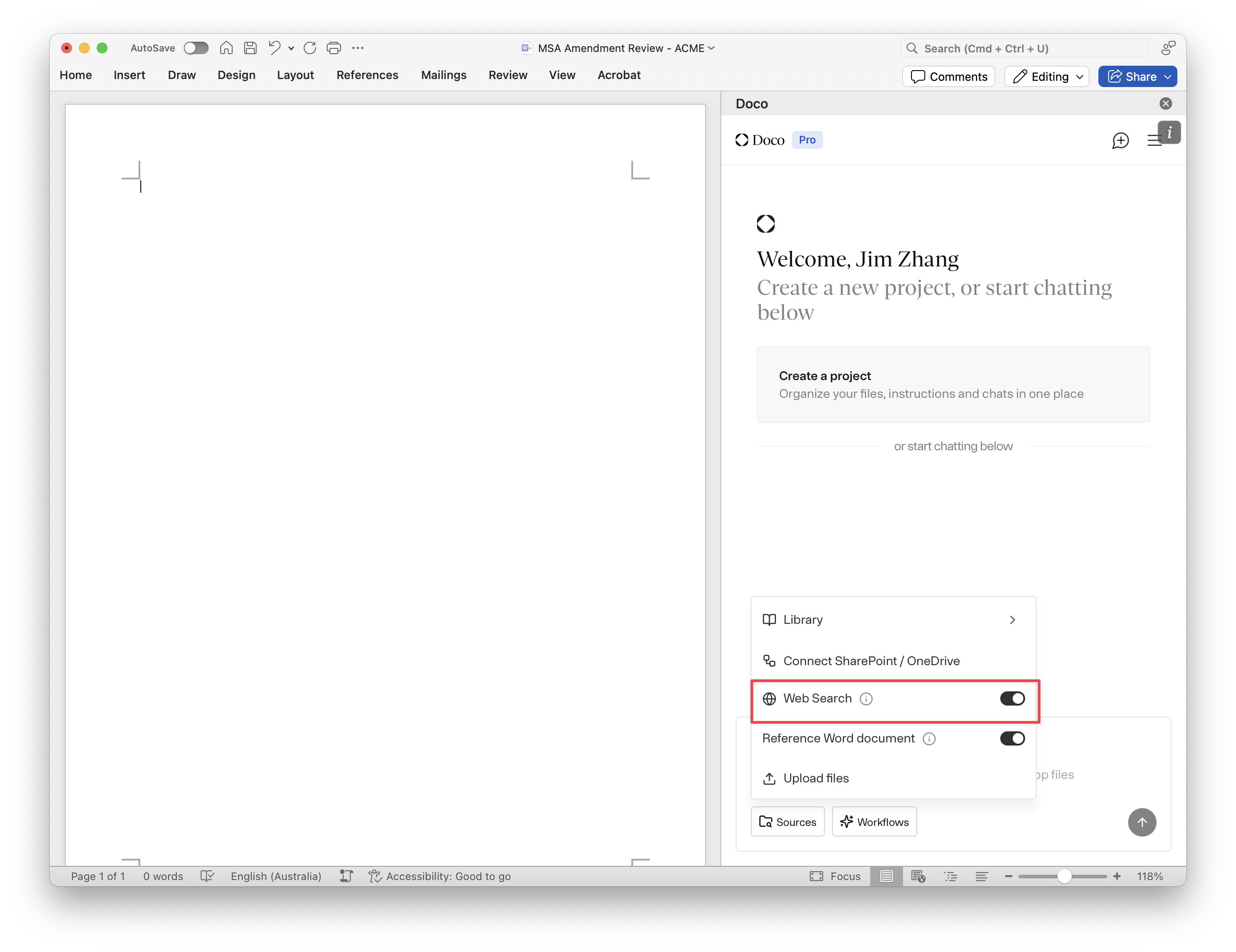
| Web Search | Enable Doco to search the public web for real-time answers. |
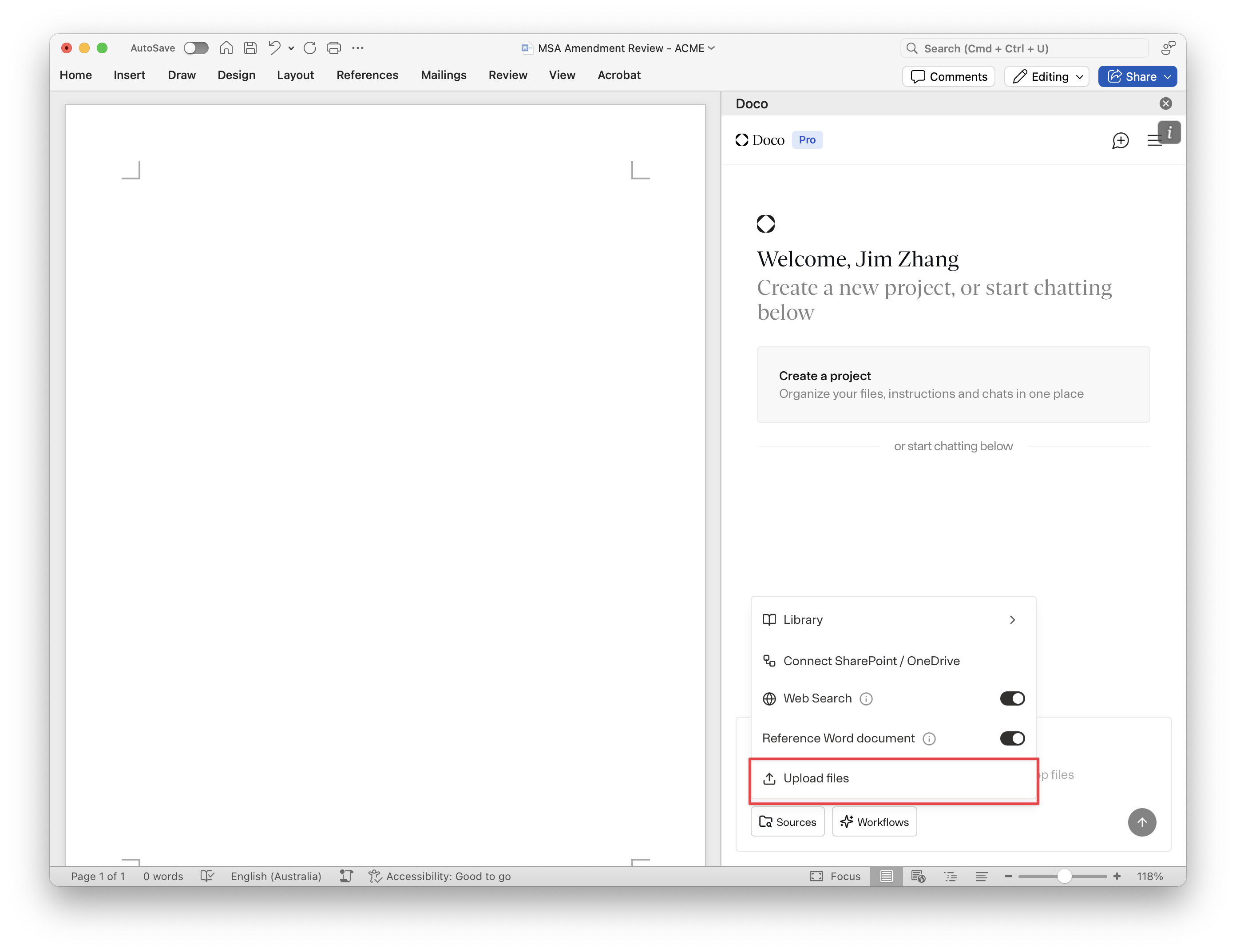
| Upload documents | Manually upload PDFs, and Word docs, for the AI to use as references. |
Library
Uploading to library
-
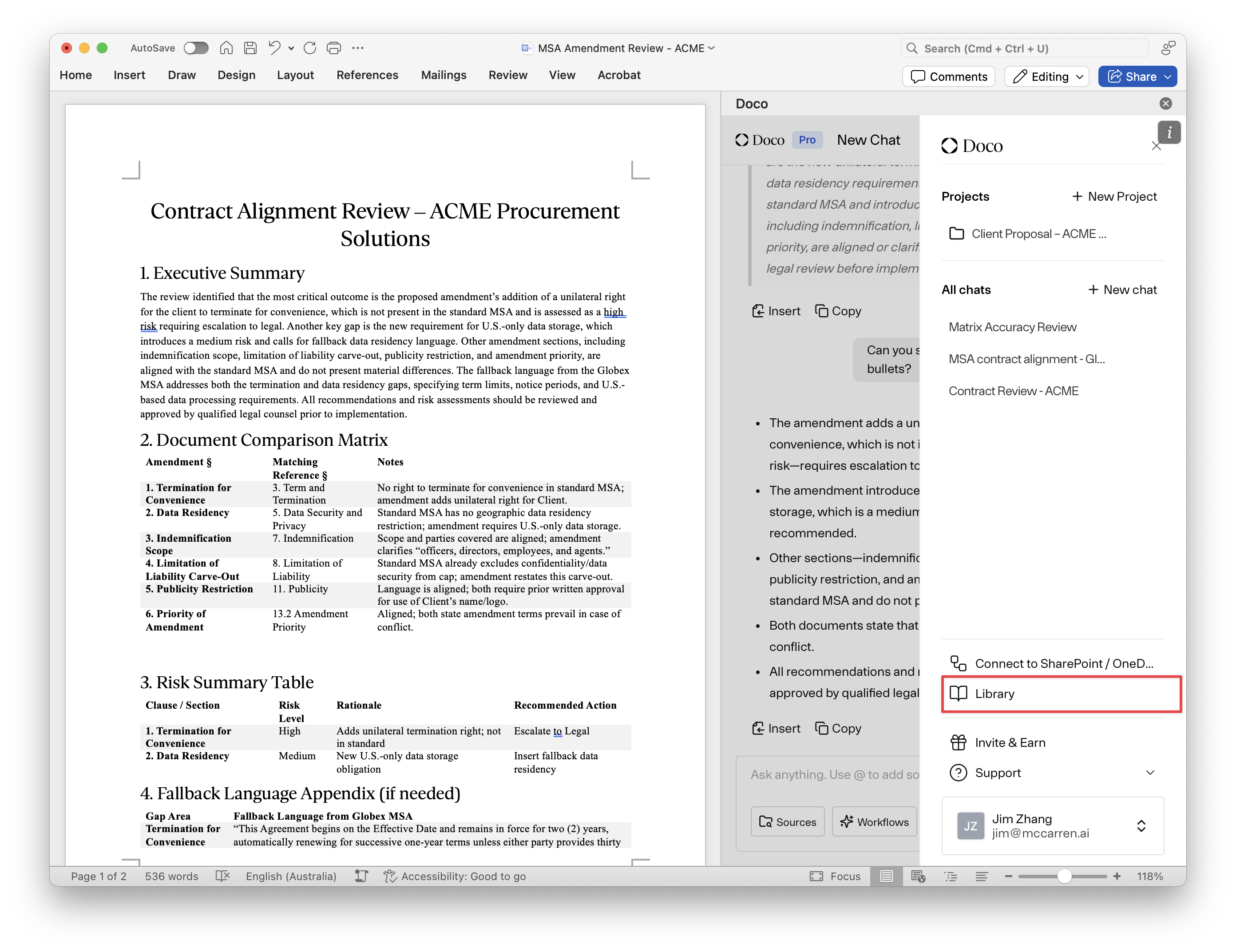
Navigate to Sidebar > Library
-
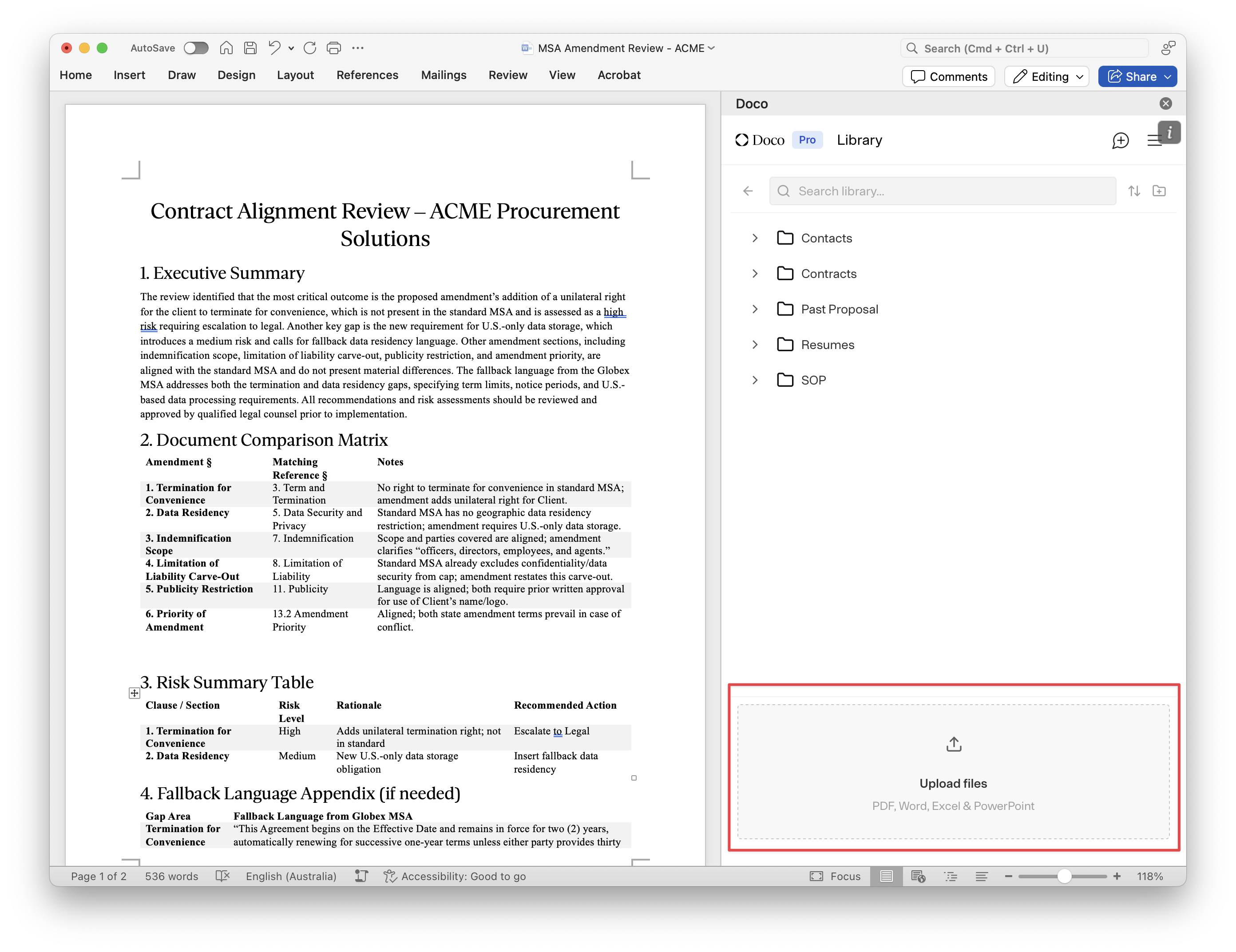
Upload files to the the library manually or by dragging and dropping into the upload box
-
Once uploaded you can view the files in the library, and they are ready to be referenced in chat
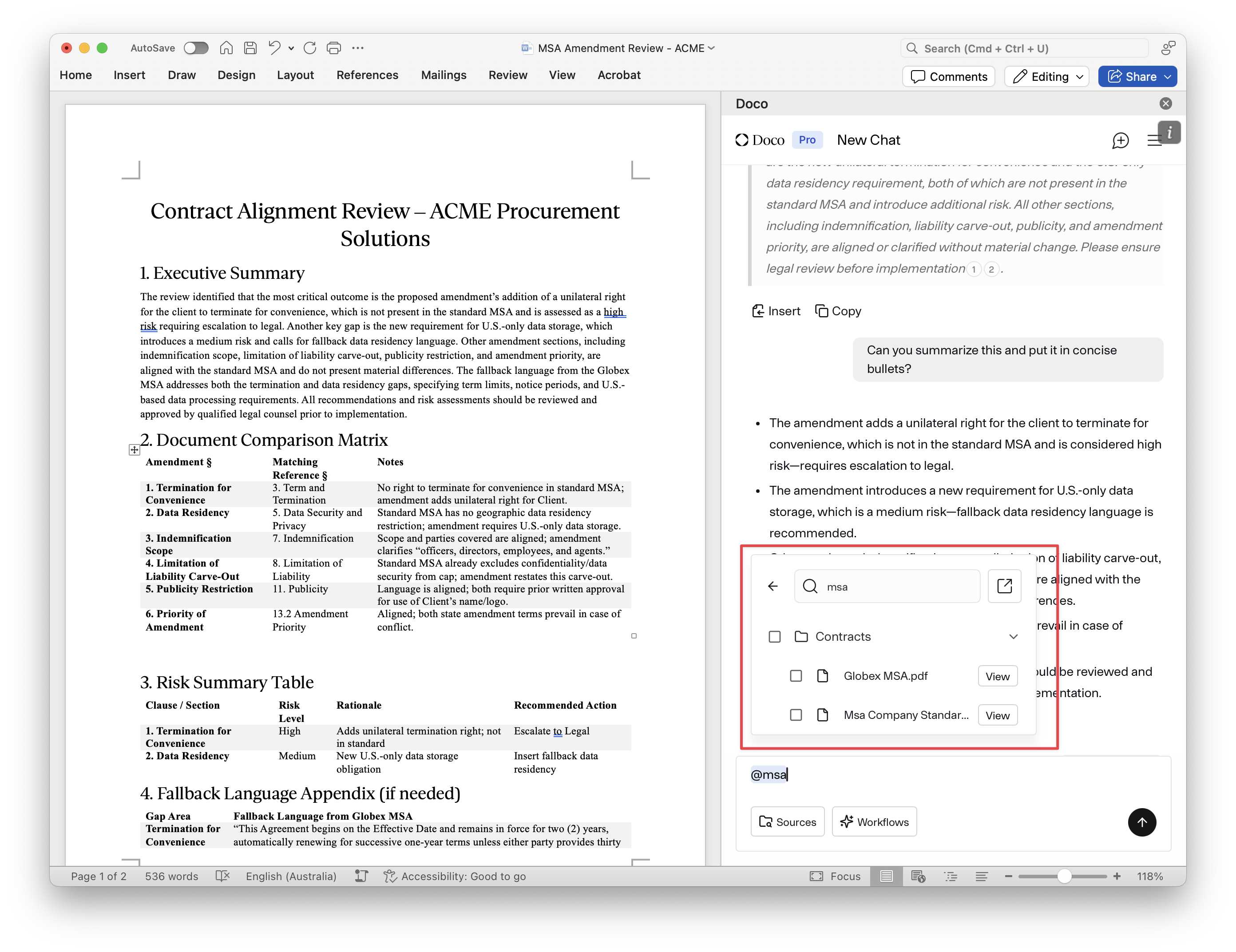
Referencing library files
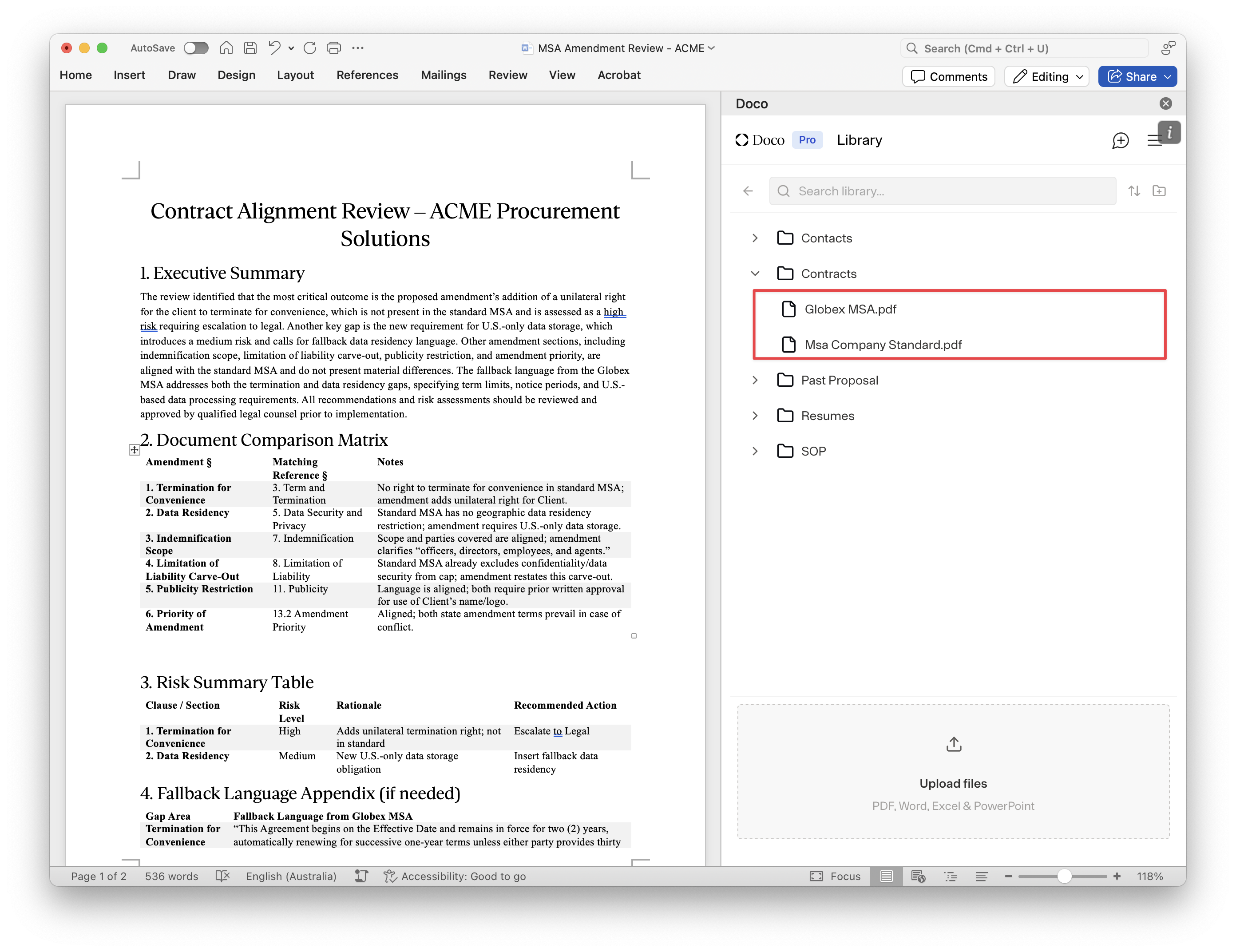
Select individual files or collections to reference during chat.
-
Click Sources > Library > Choose one or more documents/collections.
-
These files will appear as active sources and can be referenced with
@or used implicitly. -
To remove these sources from context, simply click on the “x”. For optimal results - only give Doco access to files it must have access to.
Manage Connections
- Connect cloud storage or enterprise systems (when enabled).
- You will be asked to log in and authorize access
- Any connected source will become available under Library or Sharepoint
Reference Word Document
-
Toggles AI access to the current Word document you’re editing.
-
When enabled, Doco can read and analyze your open doc live.
Use cases:
- Summarize or rewrite a section from the current doc.
- Ask: “What’s the tone of this document?”
- Request edits: “Polish this intro paragraph.”
Note:
- This feature does not upload your document to the library; it only gives local read access within your Word session.
Web Search
- Lets the assistant search the internet for up-to-date answers and public information.
Default: OFF
-
You must manually toggle it on.
-
Best for real-time data like news, market stats, or web search not found in your documents.
-
Keep web access off when not in use to limit hallucinations.
Upload Documents
-
Allows direct upload of files from your computer.
-
Supported formats:
.docx,.pdf -
Uploaded files are added to your session and stored temporarily, temporary file context is not maintain across different chats.
Good for:
- Adding RFPs, project briefs, resumes, spreadsheets, or long-form content for summarization and extraction.
Switching or Clearing Sources
-
You can add/remove sources anytime by clicking the “Sources” menu again.
-
To clear sources, click on the “x” of the specific source you’d like to remove in the chat window, or deselect the source in the “Sources” menu.