On Desktop
This section guides you through installing the Doco add-in in both Microsoft Word Desktop and versions. Make sure you're signed in with a Microsoft account that has permission to install add-ins.
- System Requirements
- ✅ Any Microsoft Word version, or Microsoft 365
- ✅ Supported platforms: Windows, macOS, or web browser (Edge, Chrome, Safari)
- ✅ Internet connection (required for AI processing)
- ✅ Microsoft account with add-in permissions
- ⚠️ If you're on a corporate device or account, installation may be restricted by IT admin policies. Please Contact Us for support.
Install Guide
Option 1: Quick Install (Recommended)
-
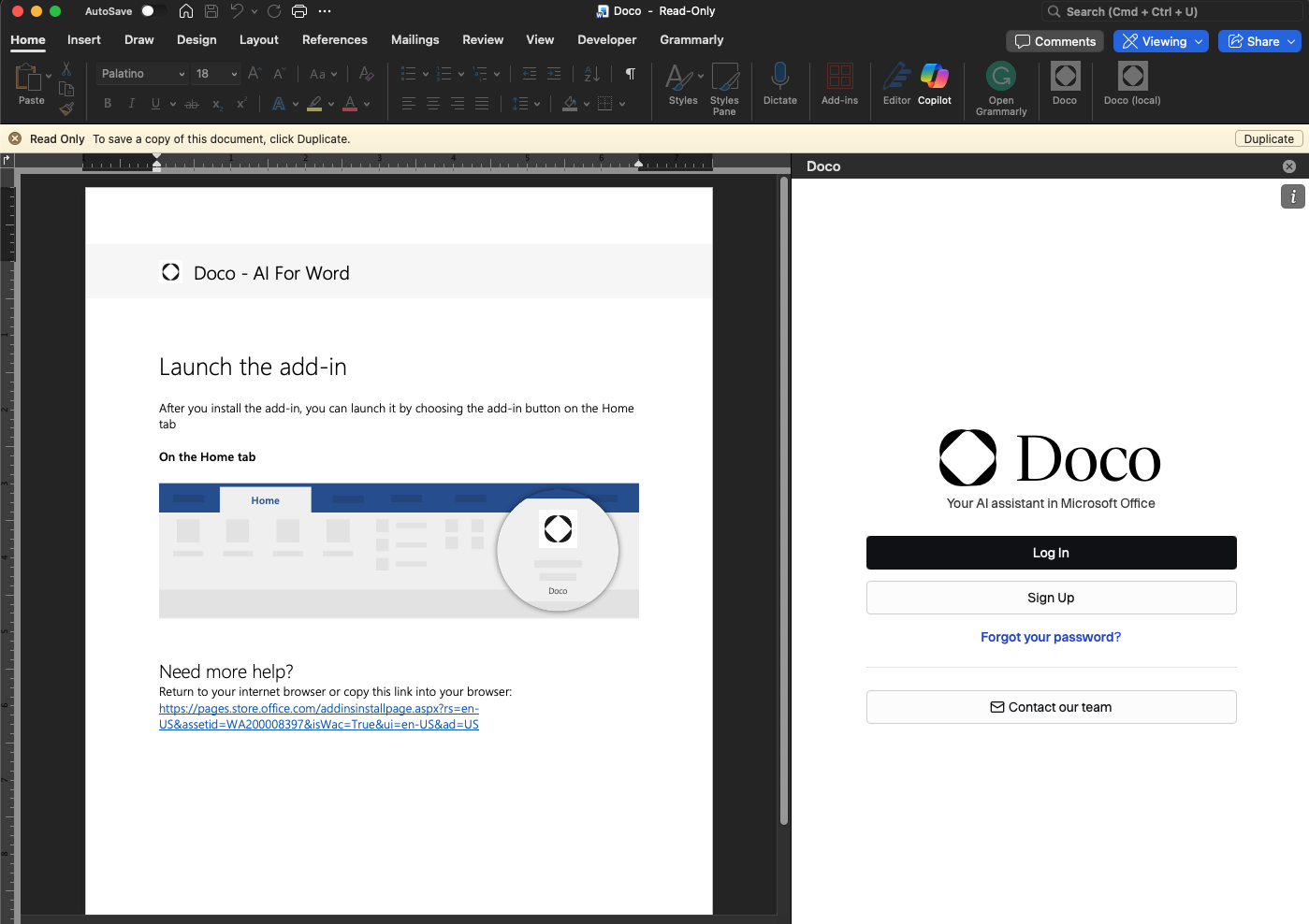
Click here to open Microsoft Word with the Doco add-in installed.
⚠️ Note: When the document opens, it will be in read-only mode. You can either switch it to edit mode, or simply open Doco in a different Word document that you are working on.
Option 2: Install via Microsoft AppSource
-
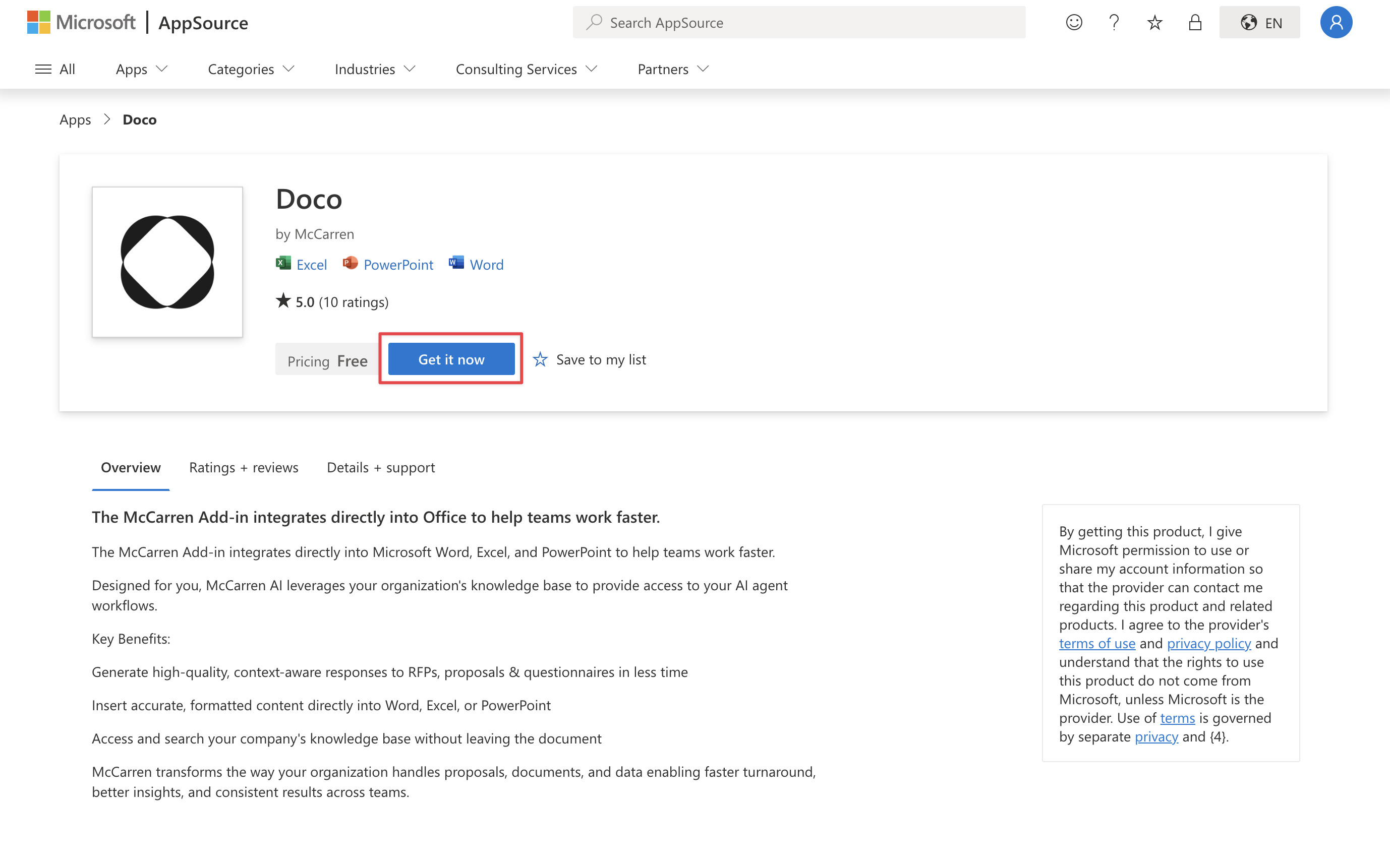
Go to the Doco page on Microsoft AppSource by clicking here
-
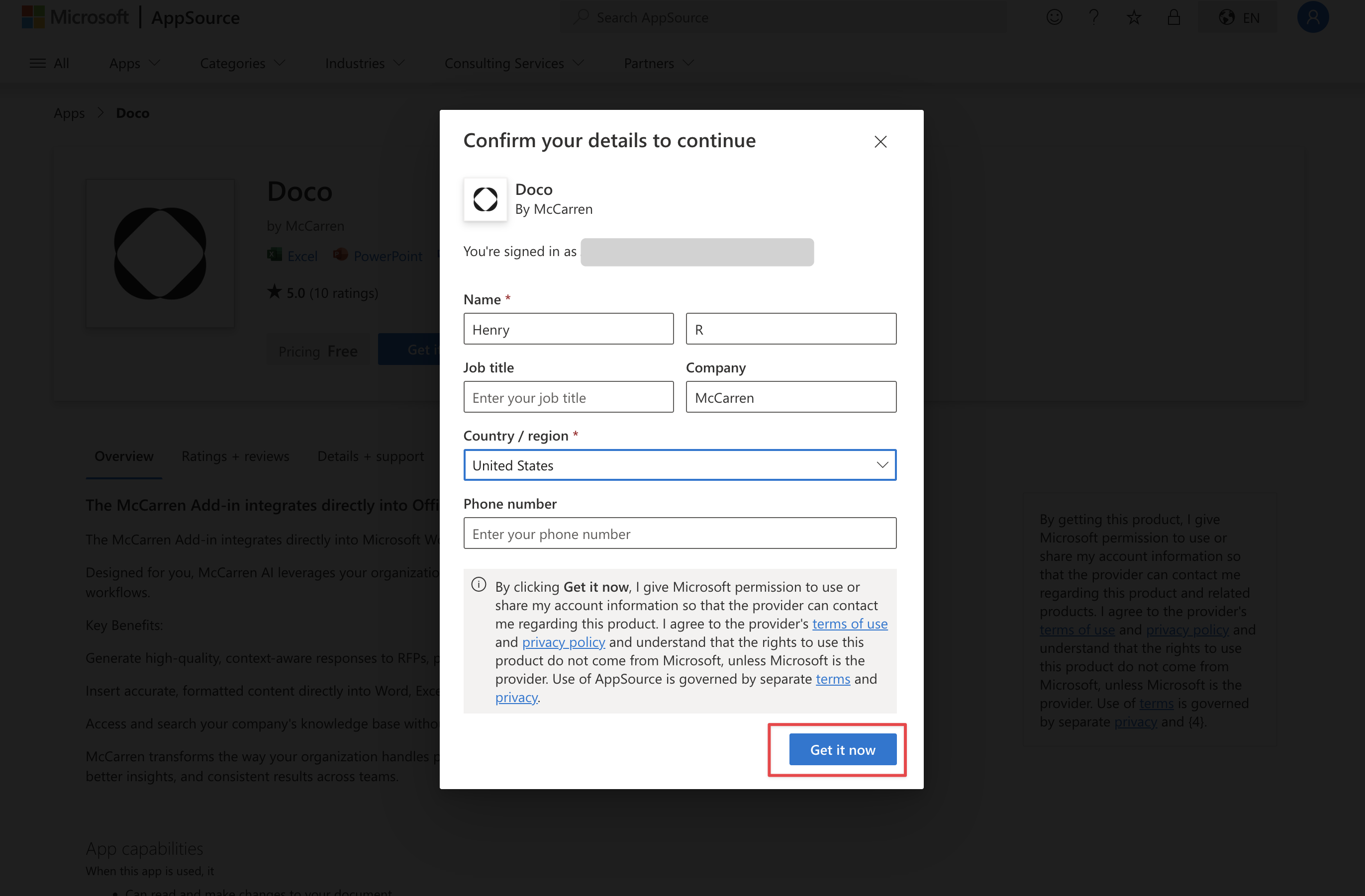
Complete the short form (name, email, organization) and confirm.
-
Click Get it now and sign in with the same Microsoft account you use in Word.
- ⚠️ If your work or school account blocks marketplace installs, contact your IT admin or use a personal Microsoft account. Please also Contact Us for support.
-
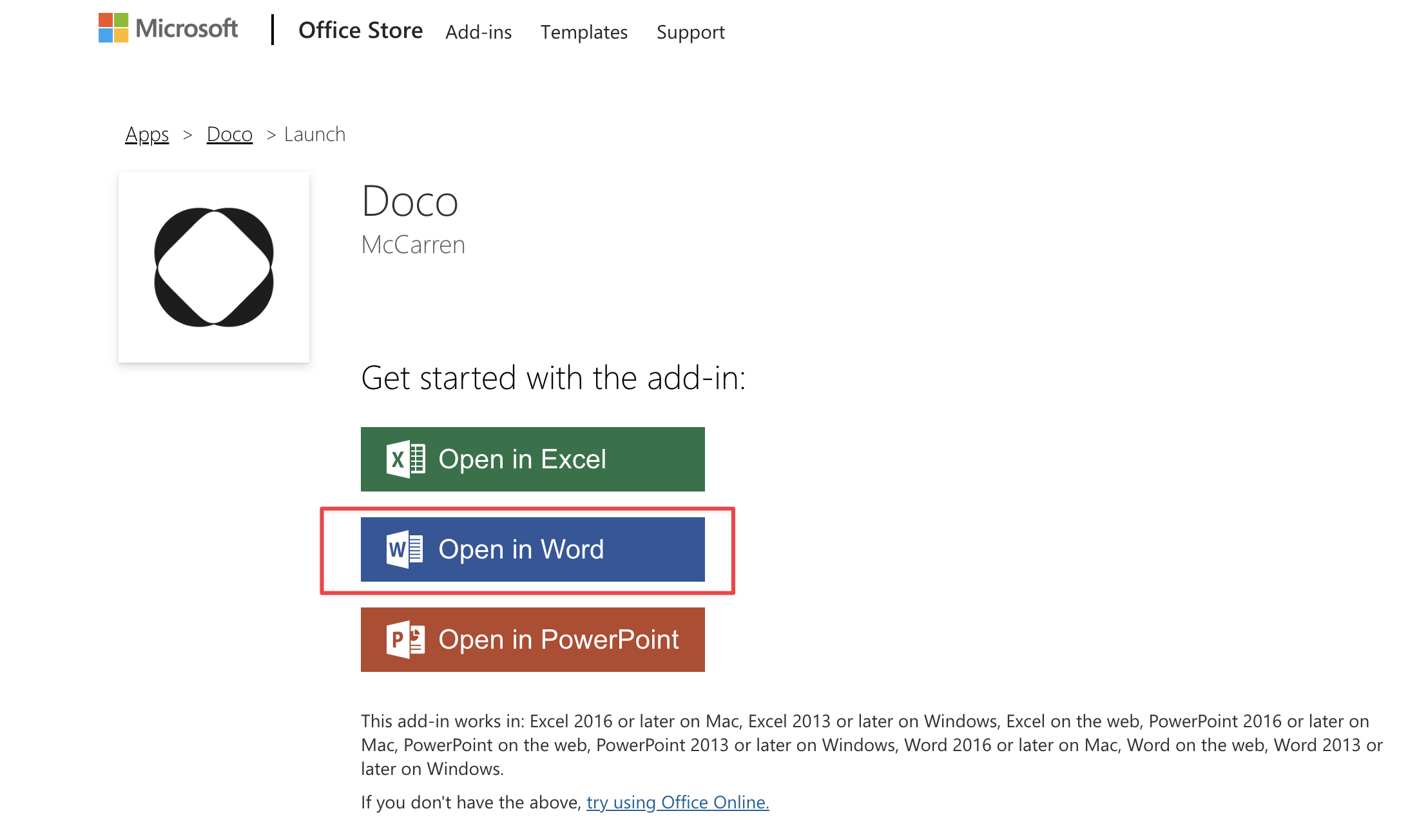
Click Open in Word.
- Word launches automatically (or prompts you to open the desktop app).
- If prompted, allow Word to open the add-in.
-
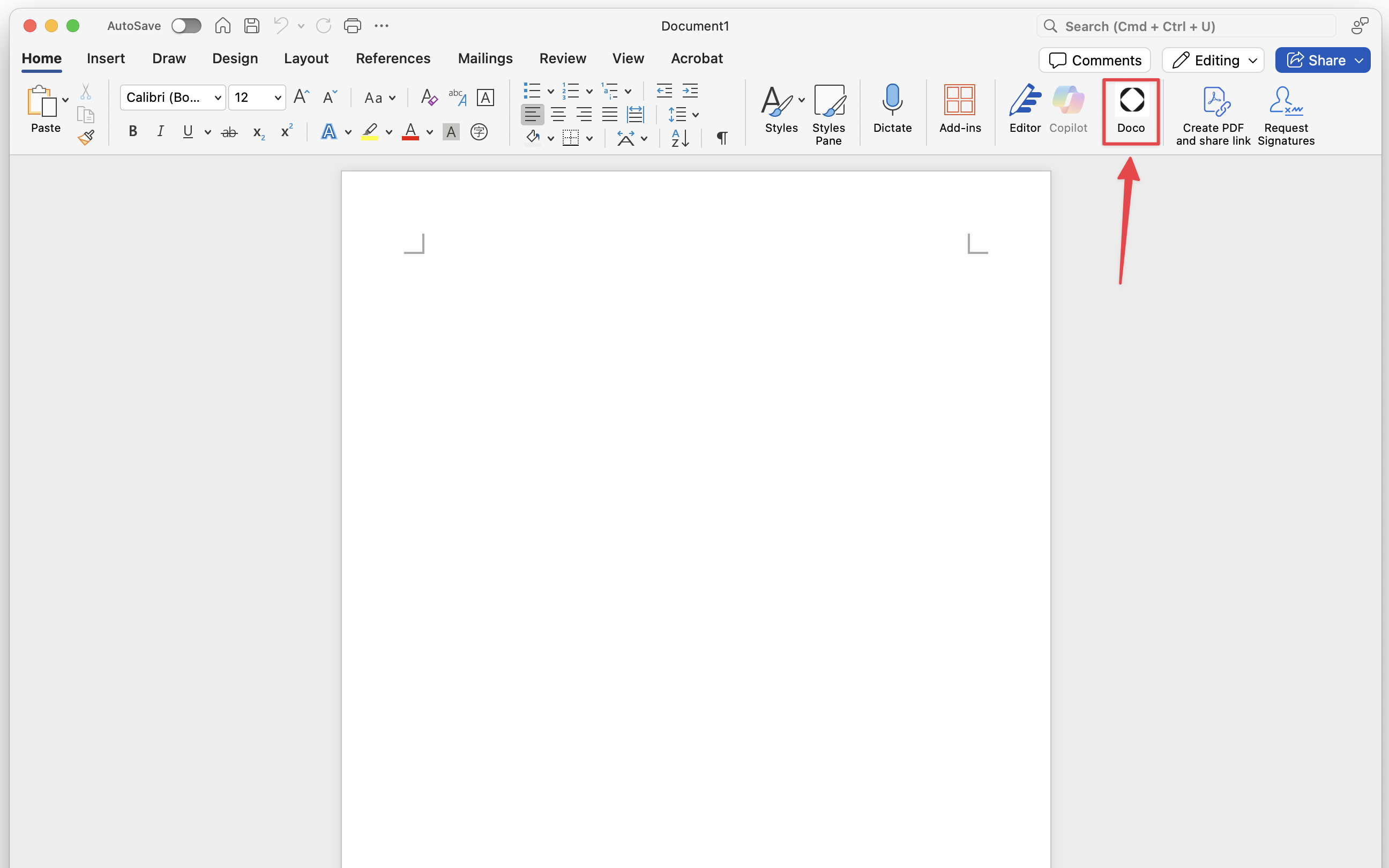
In Word's ribbon you'll now see Doco under Add-ins (or its own tab).
- If you don't see it right away, close and reopen Word or check Home › Add-ins.
- If the tab isn't visible, go to Home › Add-ins and launch Doco from the list.
- If Doco is not available from the list, Navigate Home › Add-ins › Get Add-ins, search for Doco, and click Add to enable it.
Troubleshooting Tips (Desktop):
-
No "Get Add-ins"?
→ Try restarting Word, signing in again, or checking with IT admin.
-
"Add" button greyed out?
→ Check if your Office account has proper license permissions. If you are on a corporate account, it might be restricted by IT. Contact Us for support.
-
Add-in installs but doesn't load?
→ Ensure internet access, or try disabling other conflicting add-ins.